
 Add us as a preferred source on Google
 It’s 8:30 p.m. in San Francisco, and somewhere in Berlin, a project manager is still waiting on a file that’s sitting on a colleague’s desktop, four time zones away. Ten years back, that was just Tuesday. Now it’s almost embarrassing when it happens.
The shift from local hard drives to shared, always-on workspaces has quietly transformed how teams accomplish tasks, and at this point, remote or hybrid setups are the norm for most companies, rather than an edge case. That kind of work needs tools that genuinely don’t care where anyone happens to be sitting.
So here’s a rundown of the 15 best cloud based productivity apps for teams in 2026, picked for real-time collaboration, uptime you can actually rely on, and features that survive daily use rather than just looking good in a demo, plus how to pick the right one and what’s involved if you decide to build your own instead.
What Are Cloud-Based Productivity Apps? And Why Does a Team Need Such Apps in 2026?
Cloud-based productivity apps are essentially software that resides on someone else’s servers and can be accessed through a browser or a small client app, rather than being installed on a specific machine. Files, tasks, and conversations all sit on the provider’s infrastructure, syncing across devices and updating in real time for anyone with access.
For a team in 2026, honestly, the cloud isn’t really optional anymore. Hybrid schedules, hiring across time zones, and clients scattered everywhere mean work just has to be reachable from wherever, whenever someone needs it.
Cloud adoption has basically gone mainstream at this point: over 76% of enterprises are using cloud services in some form, according to Flexera’s 2026 State of the Cloud Report. These apps eliminate the hassle of emailing attachments and allow someone in one country to review work as soon as a colleague in another finishes it.
They also take a chunk of IT work off your plate, since the provider handles the patching, scaling, and security updates behind the scenes, and that adds up the bigger a company gets.
Key Features to Look for in Cloud Productivity Software
When choosing cloud based productivity apps, you must prioritize the roles that offer you the following features. It must ensure that the software works flawlessly across all devices and supports your team.
- Real-time collaboration: Several people editing the same doc, sheet, or board at once, and everyone sees the changes instantly.
- Cross-device sync: Same data, same state, whether it’s opened on a laptop, a tablet, or someone’s phone on the train.
- Granular permissions: Real control over who can view, comment, or edit down to a single file or folder if needed.
- Native integrations: Plugs directly into the calendars, storage, and video tools a team’s already using.
- Offline access with auto-sync: Keeps working through a dropped connection and catches up the moment it’s back.
- Data encryption and compliance: Encryption at rest and in transit, plus the usual SOC 2, ISO 27001, or GDPR boxes ticked.
- Automation and AI assistance: Rule-based triggers and AI that summarize threads, draft replies, or sort tasks without being asked twice.
- Scalable pricing: Plans that don’t force a painful platform switch the moment a team grows past five people.
So, these are some of the features that are crucial to be included in the cloud based productivity apps to make them useful for the users. Now, let’s learn about some popular apps and their roles in productivity.
15 Best Cloud Based Productivity Apps for Teams in 2026
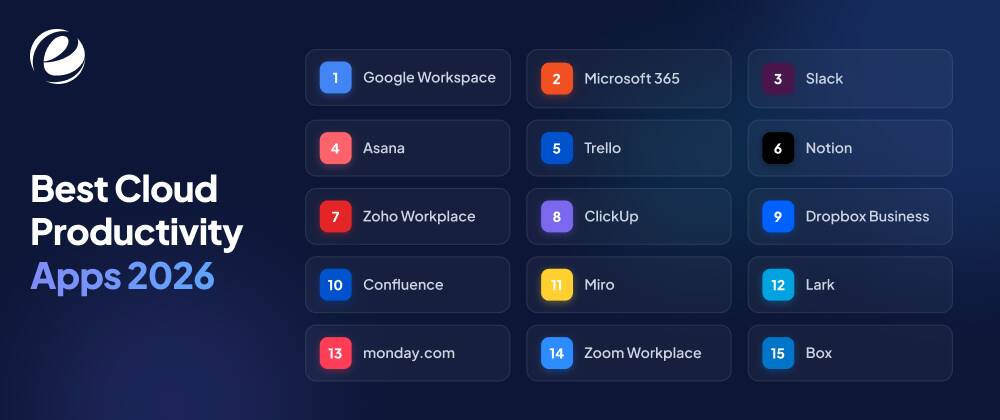
Below is a list of 15 cloud based productivity apps for teams that help them to grow and collaborate easily. It covers every core operational need from deep project management and communication to AI assistant task delegations.
Google Workspace
Google Workspace bundles Gmail, Docs, Sheets, Slides, Drive, and Meet into one cloud suite that millions of businesses already run on. Multiple people can edit the same doc at once; changes save instantly, and everyone sees them. Gemini AI is baked in now too, drafting emails, summarizing long threads, and pulling quick insights out of a spreadsheet without anyone opening a separate tool. If a team is already using Gmail, this is the easiest option.
Microsoft 365
Microsoft 365 takes the Word, Excel, PowerPoint, and Outlook everyone already knows and turns them into a connected cloud suite, backed by OneDrive and Microsoft Teams. Copilot shows up across all of it now, helping draft documents, throw together slide decks, and summarize meetings nobody had time to fully pay attention to. Pricing starts in roughly the same range as Google Workspace, with the higher tiers unlocking the heavier security and compliance stuff.
Slack
Slack sorts conversations into channels by project, client, or department, which sounds simple but genuinely kills off a lot of the email clutter teams used to live with. Slack AI now summarizes channels on its own and flags messages someone might’ve missed. With thousands of integrations available, it ends up being the glue between most of the other tools a team’s already running.
Asana
Asana’s built for structured project work, timelines, dependencies, workload views, the whole thing, so big, messy initiatives stay visible instead of falling apart into a hundred Slack threads. Teams can track goals across departments and know exactly who’s on the hook for what and by when. It’s a good fit for anyone juggling several projects at once who needs visibility across teams rather than just one flat list of to-dos.
Trello
Trello’s kanban boards make task tracking visual and drag-and-drop simple; you could honestly hand it to someone with zero training, and they’d get it in five minutes. Cards move across columns as work progresses, and Butler automation handles the small repetitive stuff like due-date nudges. It works best for smaller teams, marketing campaigns, content calendars, and anything that doesn’t need the heavier machinery of full project management software.
Notion
Notion mashes together notes, wikis, and lighter project tracking into one workspace that bends to however a team actually wants to use it. Pages link to each other, databases get filtered and sorted a dozen different ways, and everything stays searchable instead of scattered across five tabs. It’s a solid pick as a central knowledge base, especially for teams sick of hunting through old docs and disconnected spreadsheets for the one thing they need.
Zoho Workplace
Zoho Workplace packs email, word processing, spreadsheets, video meetings, and chat into one affordable bundle, and it’s built specifically to undercut the pricier enterprise suites. Small and mid-sized businesses tend to gravitate here when they want an integrated set of tools without an enterprise-sized invoice. Zoho’s broader ecosystem also covers CRM and finance, which is convenient for teams that’d rather keep everything under one vendor than juggle five.
ClickUp
ClickUp basically tries to swallow several single-purpose tools whole: tasks, docs, goals, time tracking, and chat, all in one place. Custom views let teams flip between list, board, calendar, or Gantt depending on how someone’s brain works that day. The free plan is genuinely generous too, which is probably why so many growing teams land here before they’re ready to commit real budget to something else.
Dropbox Business
Dropbox Business is mostly about secure file storage and sharing. It handles big files without complaint and offers password-protected, expiring links when something needs to go out securely. Smart Sync keeps everything available across devices without eating up a laptop’s entire hard drive. It’s best paired with a separate task or project tool, honestly, since it was never really built to handle task management on its own.
Confluence
Confluence is Atlassian’s documentation platform, built around templates for meeting notes, project plans, retrospectives, and the usual suspects. Macros let teams drop task lists, calendars, or Jira issues straight into a page, and the page-level permissions keep sensitive stuff locked down to the right people. It pairs naturally with Jira, so engineering and product teams already in that world tend to feel right at home.
Miro
Miro is a digital whiteboard for brainstorming, diagramming, and the kind of workshop sessions that just don’t translate into a regular doc. People can sketch, move sticky notes, and build out wireframes together in real time, and anyone can come back later to view the finished board. It’s especially good for design, product, or strategy teams, basically anyone who thinks better with a pen (or a cursor) in hand.
Lark
Lark pulls messaging, calendar, video calls, and a surprisingly capable relational database called Lark Base into one workspace, cutting down on the usual app-hopping. Its Magic Share feature lets people scroll through a shared doc mid-call without breaking the conversation, which is a small thing but genuinely useful. Built-in translation also makes it a practical pick for multinational teams working across languages day to day.
monday.com
Monday.com is colorful and customizable and lets teams build their own boards, automations, and dashboards without touching a line of code. The visual style makes status and ownership obvious at a glance; you can usually tell who’s behind it just by looking. Pre-built templates speed up setup for the common stuff, like sales pipelines or content production, and it suits teams that want flexibility without a steep learning curve attached.
Zoom Workplace
Zoom Workplace has grown past just video calls into team chat, whiteboarding, and AI-generated meeting summaries, all inside the platform people already trust for calling. AI Companion drafts follow-up emails and recaps action items the moment a meeting wraps. For teams whose collaboration really does revolve around video first, this consolidates a handful of separate tools into one.
Box
Box is built around secure, enterprise-grade content management permission controls, retention policies, and the compliance certifications that regulated industries tend to ask for. It plugs cleanly into Google Workspace, Microsoft 365, and Slack rather than trying to compete with them, working more like a secure storage layer sitting underneath whatever a team’s already using. It’s a sensible pick for legal, healthcare, or financial teams with strict governance requirements.
Comparison Table of the Top Cloud Based Productivity Apps
If you are still stuck on what to choose, this could be the easiest option. In the section below, you can quickly see the top cloud based productivity apps:
| App | Starting Price | Best For |
| Google Workspace | $7 per user/month | Real-time document collaboration |
| Microsoft 365 | $6 per user/month | Enterprise teams on Office tools |
| Slack | Free; $7.25 per user/month | Team messaging and async updates |
| Asana | Free; $10.99 per user/month | Structured project management |
| Trello | Free; $5 per user/month | Visual, lightweight task tracking |
| Notion | Free; $10 per user/month | Flexible docs and knowledge base |
| Zoho Workplace | $3 per user/month | Budget-friendly all-in-one suite |
| ClickUp | Free | All-in-one task and doc management |
| Dropbox Business | $15 per user/month | Secure file storage and sharing |
| Confluence | Free; $5.16 per user/month | Team documentation and wikis |
| Miro | Free; $8 per user/month | Visual brainstorming and whiteboarding |
| Lark | Free; $12 per user/month | Unified messaging, docs, and database |
| monday.com | $9 per user/month | Customizable, no-code workflows |
| Zoom Workplace | Free; $13.33 per user/month | Video-first team collaboration |
| Box | $20 per user/month | Enterprise content governance |
So, with the help of this table, you can easily choose the right app for your team. This will help them improve their skills and grow.
How to Choose the Right Cloud Productivity App for Your Team?
With dozens of cloud based productivity apps available, the best choice depends on a few practical questions rather than a side-by-side feature checklist. Most failed rollouts I’ve seen trace back to someone skipping one of these before signing anything:
- Team size and structure: A five-person startup and a 500-person company need totally different levels of complexity. Oversized tools just slow small teams down with setup nobody needs, and undersized ones quietly break once a real load shows up.
- Existing tech stack: Go for apps that play nicely with the calendar, storage, and communication tools already in daily use; forcing a full switch just disrupts habits people already rely on.
- Budget and pricing model: Per-seat pricing sneaks up fast as a roster grows, so compare the total cost at the team’s actual size, not the starting price plastered on the homepage.
- Security and compliance needs: Finance, healthcare, and anything regulated prioritize real encryption standards and certifications like SOC 2 or HIPAA over whatever flashy extras looked good in the sales demo.
- Learning curve: A powerful tool nobody actually opens is worse than a simpler one that the whole team uses every single day without grumbling.
- Mobile and offline access: Field teams or hybrid staff need something that keeps working without a stable connection and catches up cleanly once it’s back.
Most teams end up running two or three cloud based productivity apps together rather than betting everything on one all-in-one platform, and that’s perfectly normal.
Thinking About Building Your Own Cloud Based Productivity App?
Off-the-shelf tools cover most needs, sure, but plenty of businesses eventually outgrow generic platforms or want a workflow competitors simply can’t copy. A custom-built cloud productivity app can plug directly into internal databases, enforce a company’s own approval chains, or serve some niche corner of an industry no mainstream app really bothers with.
It also gets rid of per-seat licensing costs that start to hurt as headcount climbs. If a team keeps bending three different tools into shapes they were never meant to take, that’s usually the sign it’s time to look into custom mobile app development built around the actual workflow instead.
How to Develop a Cloud Based Productivity App?
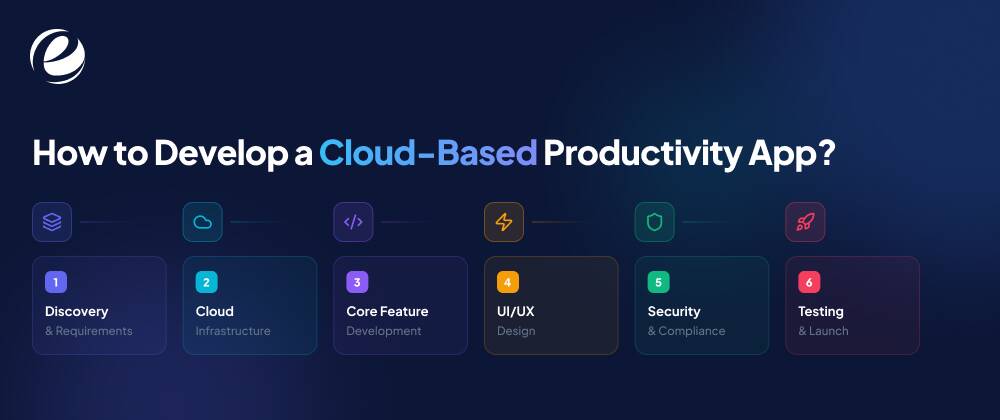 So, if you are all set to build your own cloud based productivity app, then this is a step-by-step process. Building something like this generally breaks down into six stages:
- Discovery and requirements: Nail down the core workflows, user roles, and must-have features before a single line of code gets written, based on real gaps in whatever’s being used now.
- Choosing cloud infrastructure: Pick a backend provider and an architecture that can handle real-time sync and scale with the expected load. A lot of teams plan Android app development services alongside the backend work, too, if a mobile client is part of the plan.
- Core feature development: Build out authentication, file or task storage, real-time collaboration logic, and notifications; these are the core functionalities of the app.
- UI/UX design: Keep interfaces simple enough to survive daily, repetitive use, because productivity tools live or die on how little friction they add to someone’s day.
- Security and compliance: Bake in encryption, role-based permissions, and any industry-specific compliance from day one, not bolted on afterward.
- Testing, launch, and iteration: Run usability and load testing, launch to a smaller group first, and adjust based on how people actually use it before rolling out wider.
Costs swing pretty widely depending on feature complexity and platform scope, so looking into how much it costs to design an app is a decent place to start before locking in a budget.
Why Choose EmizenTech for Cloud Productivity App Development?
Building a productivity tool people actually want to open every day takes more than code that technically works; it takes the kind of experience that only comes from shipping software that survives real, daily use.
We have spent years building cloud-based app development and mobile-first applications across a range of industries, with one team handling backend architecture, UI design, and deployment, instead of bouncing the project between five different vendors. That kind of end-to-end ownership means fewer handoffs and a product that we actually test against real team workflows, not just a tidy demo.
Our developers work across the major cloud platforms and follow security practices suited to regulated industries, which starts mattering a lot once a productivity tool is holding genuinely sensitive company data. Teams ready to scope something out can look into EmizenTech’s app development capabilities or just go ahead and hire mobile app developers directly for the build.
Conclusion
Cloud based productivity apps have gone from a nice-to-have to basically the baseline for how distributed teams function in 2026. Whether a team needs an all-in-one suite like Google Workspace, something more focused like Trello, or a tool built entirely around its own workflow, the right choice depends on size, budget, and whatever’s already in place, not some universal “best” app that works for everyone.
Start by mapping out the actual daily friction points, test a shortlist against real workflows, and only scale up what proves genuinely useful. And for teams that hit the ceiling of what off-the-shelf software can do, custom development is still the more durable answer in the long run.
FAQs
What are cloud-based productivity apps?
The cloud-based productivity apps are software tools hosted on remote servers rather than your local computer. They allow you to create, collaborate, and manage work from any device with an internet connection.
Can cloud productivity apps be used offline?
Yes, there are many cloud productivity apps that you can use offline, though this requires pre-configuring your settings and syncing your files before you lose your internet connection. Some popular cloud apps are Google Workspace, Microsoft 365, and Notion.
Are cloud-based productivity apps secure?
The cloud-based productivity apps can be very secure, offering stronger security measures than local, in-house systems, such as multi-layered security, encryption, and dedicated security teams.
Which cloud productivity app is best for remote teams?
The best cloud productivity app for remote teams depends on your exact needs. One of the top choices for document collaboration is Google Workspace; for instant messaging, you can choose Slack; and for project management, you can choose Asana or Trello.





 +1 (989) 535-9295
 info@emizentech.com
 emizentech


